 | English |
SAP Business Network is moving to a new platform.
Every supplier account is being migrated to SAP Business AI Platform. SAP manages the upgrade for you — when it’s your turn, you’ll receive an advanced notice with a minimum of 30 days that contains everything you need to know. Your data, your connections, and your transaction history all come with you. For most suppliers, the day-to-day lift is minimal.
Video walkthroughs of the new supplier interface - explaining what changed and where to find things.
Texts are available in ~40 supported languages.
Adjust the language at the top right corner. Change video captions – FR, SP, PT, German - via the video settings. Chinese and Japanese videos available at the bottom of the page.
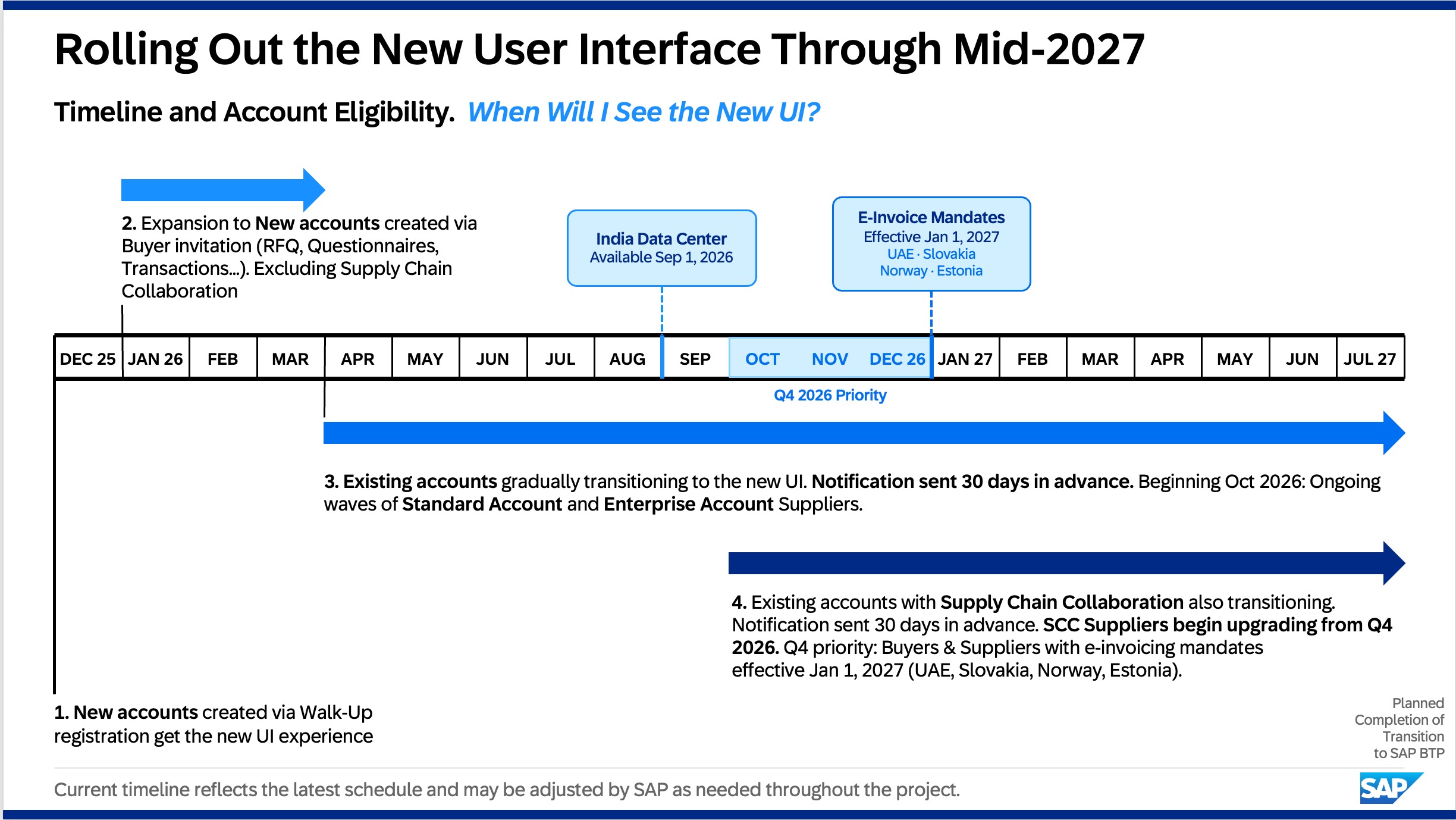
Your timeline depends on your account type.
SAP is rolling out the new interface throughout 2026-2027. Newly established accounts are already on the new UI. For existing accounts, timing varies — suppliers with Supply Chain Collaboration upgrade on a separate schedule. Either way, you’ll receive a minimumn of 30-day advance email notification before your upgrade date. Look for “Supplier Network Account Upgrade Notification” in your inbox.
Your data, your account, your connections — all preserved.
Suppliers can rest assured that this transition does not impact the foundation of their account. The following remain fully intact:
•Account type (Standard, Enterprise, Paid, Free)
•Pricing model
•Existing customer relationships
•User access, documents, and historical data
•Supplier configuration
•Capabilities like PO flip, catalog uploads, and integrations
One small note: you may need to reset some filters or tiles from the default values after upgrade.
No action is required from you ahead of your upgrade date.
The interface is refreshed. The way you work isn’t.
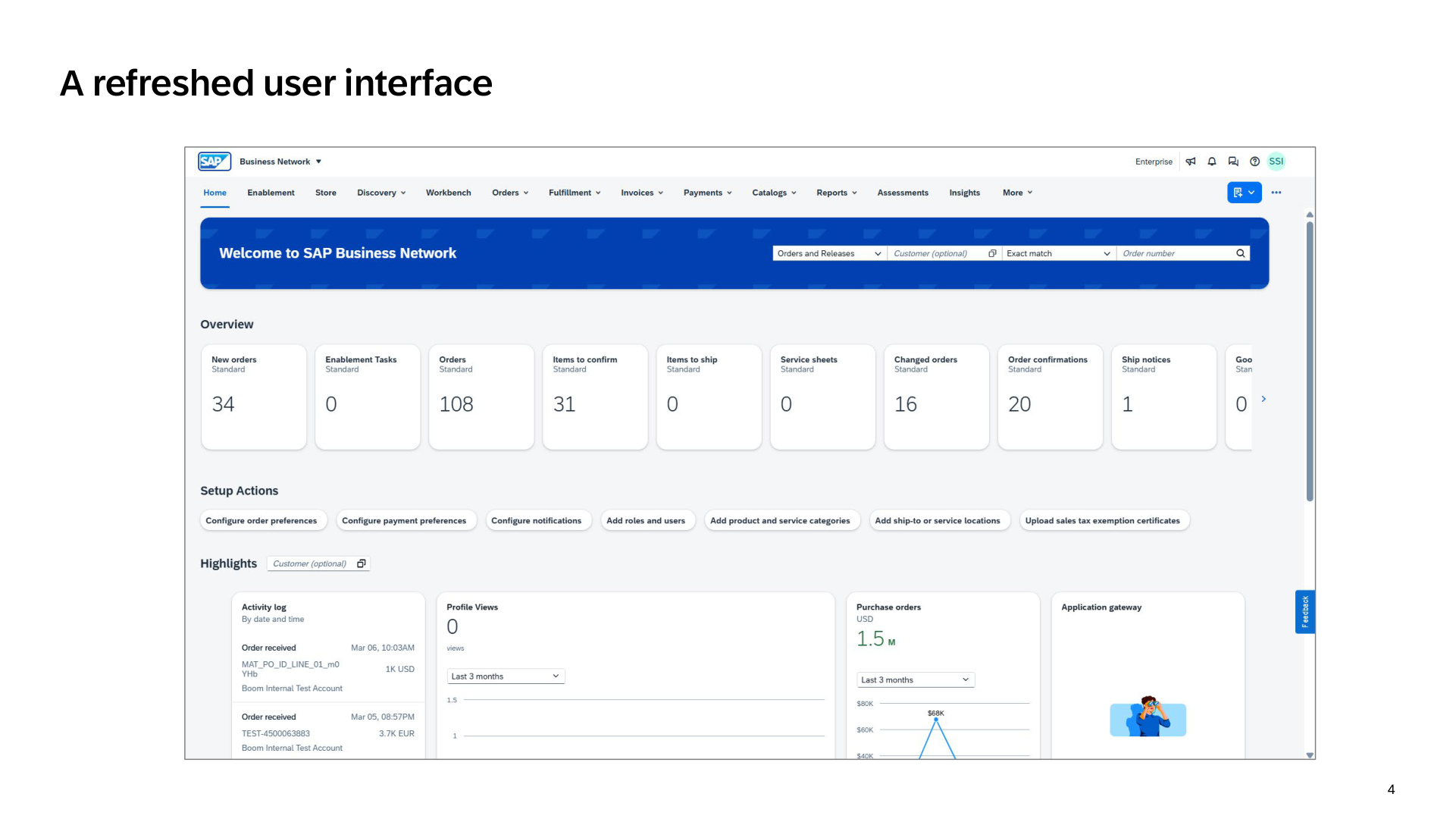
SAP Business Network has a new look on SAP Business AI Platform — cleaner layout, updated navigation, same functionality. If you know where things are today, you’ll find them quickly in the new UI.
Short videos for the tasks you’ll do first — setting up your account, managing users, and knowing where to go for help.
Steps to upgrade your account to an Enterprise subscription.
Watch now ›Where to go when you need help — resources and support options.
Watch now ›Full-length walkthroughs, a live Q&A replay, and a supplier guide.
Live Q&A replay. Covers the full new UI with real examples and audience questions answered.
Watch replay ›What actually changes for suppliers when SAP Business Network moves to SAP Business AI Platform — and what stays exactly the same. A guide from the SAP Business Network team.
Read the full guide ›The complete collection of supplier UI videos, organized by topic.
View the full playlist ›Step-by-step guides for every process — plus demo videos where available.
Receiving, acknowledging, and managing POs from buyers.
Creating and submitting invoices against buyer purchase orders.
Assigning and maintaining user permissions across your supplier account.
Completing and maintaining your supplier profile and qualifications.
Confirming acceptance of buyer orders and communicating changes.
Notifying buyers of upcoming shipments and delivery details.
Checking payment status and remittance detail for submitted invoices.
Managing your company profile and maintaining connections with buyer organizations.
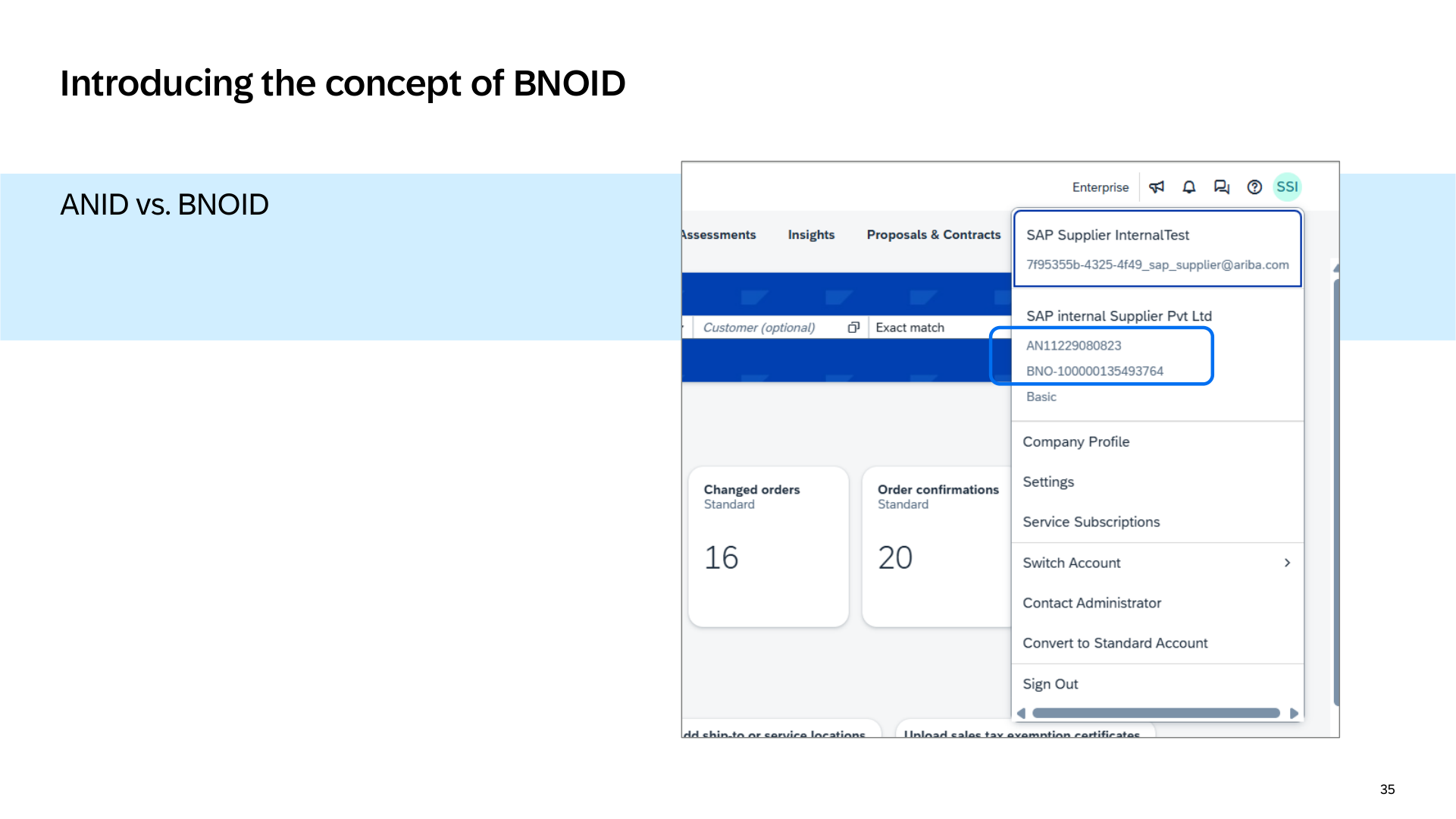
You’ll notice a new ID in your account: the BNOID.
Your ANID isn’t going away — it’s your account ID and it stays the same. The BNOID is a new entity ID that appears alongside it in the new UI. If you’ve ever looked at your account profile and wondered what that number is, here’s what it means.
For most suppliers: not much.
SAP handles the upgrade. You don’t need to schedule anything, submit a form, or take action before your upgrade date. When your account is scheduled, you’ll receive a minimum of 30-day advance notification by email.
After your upgrade, a few simple spot checks are worth doing:
•Confirm your key notifications are still turned on — Network Service, Undeliverable Orders, Invoice Status Change, and Invoice Failure
•Reset any filters or tiles that may have defaulted back
•Review your company profile to confirm your details carried over correctly
Stay informed, find answers, and get support.
Whether you’re looking for community guidance, product documentation, or process guides, the resources below are here to help.
Latest updates, upcoming events, and guidance from SAP experts — all in one place.
Go to community ›Explore the Help Center for tutorials, knowledge base articles, and product documentation. Find answers, learn, and interact directly with Product Support.
Go to Help Center ›A step-by-step administration guide for suppliers on SAP Business Network on SAP Business AI Platform. Covers account setup, user management, and system configuration.
View guide ›This information reflects the status of SAP Business Network planning as of September 2026 and is subject to change at any time without notice. SAP assumes no responsibility for errors or omissions and nothing in this web page should be construed to represent any commitment by SAP to include any specific new features in any version of the SAP solutions.
